Posts

Showing posts with the label Mac

How to Set Up Albums & Libraries in Photos for Mac?

Image
Cameras are easily available and we love clicking pictures. Because of this, we end up having way too many pictures lying around in our devices. Even though clicking pictures is fun, organizing them is not. Mac’s Photos app makes it easier for you to use albums and libraries to organize pictures. Adding Images & Videos to Albums If you want to add images & videos to albums in Photos for Mac, then you need to follow the instructions given below. First of all, you have to open the Photos app on your MacBook. After that, you should select Photos on the left side beneath the Library section. Then you should choose the pictures you would like to move to an album. Thereafter long-press the command key on your MacBook & choose the number of images. Later, you have to go to your selected pictures & videos, right-click on it. Now, go to the Add to option. Then you can select between creating a new album or an existing album. To Arrange Albums & Folders ...
How to Delete an App from your Mac

Image
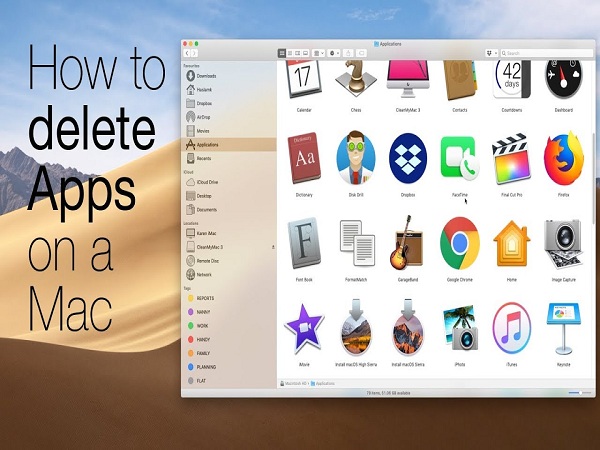
There is a big difference in standard laptop and Macbook. Both have the different software and features. Macbook has a different operating system. It runs on the OS X operating system of Apple, whereas standard laptops are running on the Windows operating system. Both of these have the different functions. So, for a new user of Mac, it may be difficult to perform some actions. If you are an old user, over the time your device gets full of lots of apps that you no longer use or stopped working on. To get rid of these apps you need to remove them from your device. There may be different reasons for deleting an app. You can delete an app directly from your Dock. Follow below-mentioned steps: 1.     Click & hold the app icon you want to remove. 2.     Drag the app icon to the Trash Bucket icon and release it. Now, your app will be in the trash. For permanently deleting the app, follow these steps: 1.     Open th...

Best ways to Forget a Wireless Network on Mac

Image
Whenever you join a Wi-Fi network on your Mac, it automatically connects the wireless network at the time you are in the range of that network. Sometimes, it is pretty irritating for most of the users who are using Wi-Fi networks. However, it is not that convenient as it looks. Forgetting the wireless network is necessary for the time when you take your Mac in some other place, you can locate a new network and connect them forcefully. However, it includes public Wi-Fi spots such as a local coffee shop, restaurants, railway station and it could be at a friend’s home or library. Well, it is the handiest way to join the public hotspot, but many times, it can be trouble for users when their Mac reconnects a network from which you don’t want to connect. Therefore, to prevent from this, it is better to permanently delete that networks which you don’t want to join again, and it is much safer from a security point of view. For example, if anyone wants to log in to your online banking, so yo...

Simple Ways to Stop Mac From Showing Prompts Before Deleting

Image
Macs have an inbuilt mechanism to display a confirmation message to verify the user before deleting any file from your system.   What you need to know is no deleted files are lost from your Mac until you delete them permanently from the trash folder. Trash folder is the one with the waste paper bucket icon which you can access to delete your files permanently from the computer. If you are deleting your files to create some space on your Mac, you may keep in mind to also remove those files from the trash folder. When you delete the unwanted files from the trash folder, you are presented with a message requesting your permission that “You confirm that you want to delete” the file that you have selected. It is indeed user-friendly to stop any unwanted data loss or accidental deletion of your project files. This feature becomes much more useful when you don’t have any backup files to secure your data. Before heading to various steps for getting rid of the confirmation me...

Tips and Tricks to Free up Extra Hard Drive Space in Mac

Image
Are you suffering from the problem of extra storage space in Mac? Then don’t worry, we are here to address this menace through simple tips.The over-loaded hard drive is harmful to your files and contents as it can corrupt your system and hamper its performance. Here we go to fix the issue with simple tips that are given below: 1. Clean your Downloads Folder Generally, Downloads folder in Mac is one of the significant culprits of wasted storage. It is here noted that almost all content you download through any web browser gets hurled into the general Downloads folder. In many times, this also includes the contents delivered to you from other apps as well. That’s why it is suggested to visit that folder periodically so that your unnecessary files can be trashed permanently. • Delete apps that you don’t run Visit your applications folder and delete any app which you don’t need per se. If you bought them from the Mac App Store, you can re-download those apps whenever you w...